
Verify Team Member Skills in the Skills Matrix
Prerequisites
Before you begin, please ensure you have the following:
- Access to the OMG platform.
- You must be assigned as the Line Manager or Capability Manager for the team member whose skills you are verifying.
Step-by-Step Instructions
Follow these steps to navigate to the Talent dashboard and verify a team member's skills.
Log in to OMG. You will land on your main dashboard.
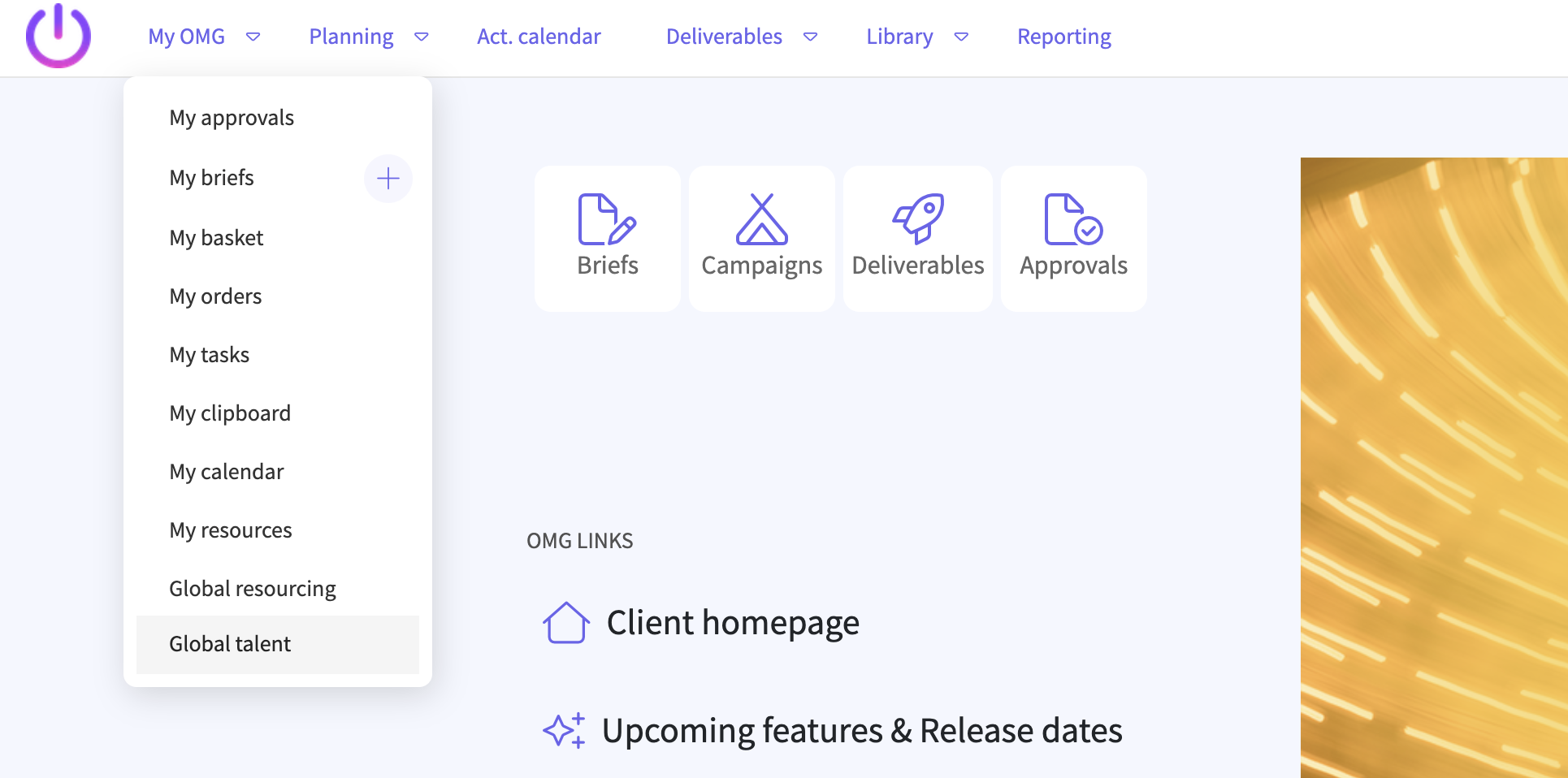
Navigate to the Talent section. In the top navigation bar, click on the My OMG dropdown menu.
Select Global talent. From the dropdown menu that appears, click on Global talent.
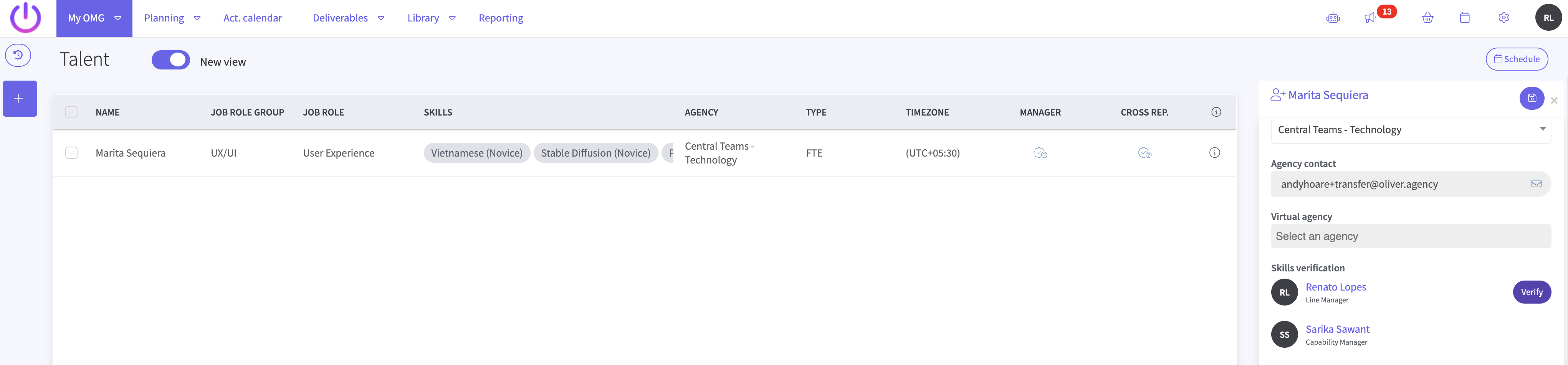
Wait for the Talent dashboard to load. The system will take you to the Talent dashboard, where you will see a list of team members. This list includes columns for Name, Job Role, Skills, and Agency.
Locate your team member. Find the team member whose skills you need to verify in the list.
Open the Resource details panel. In the row corresponding to your team member, move to the far right and click the information icon (a circle with an "i" inside it).
View the Resource flyout. A panel, called the "Resource flyout," will slide out from the right side of the screen. This panel contains detailed information about the selected team member.
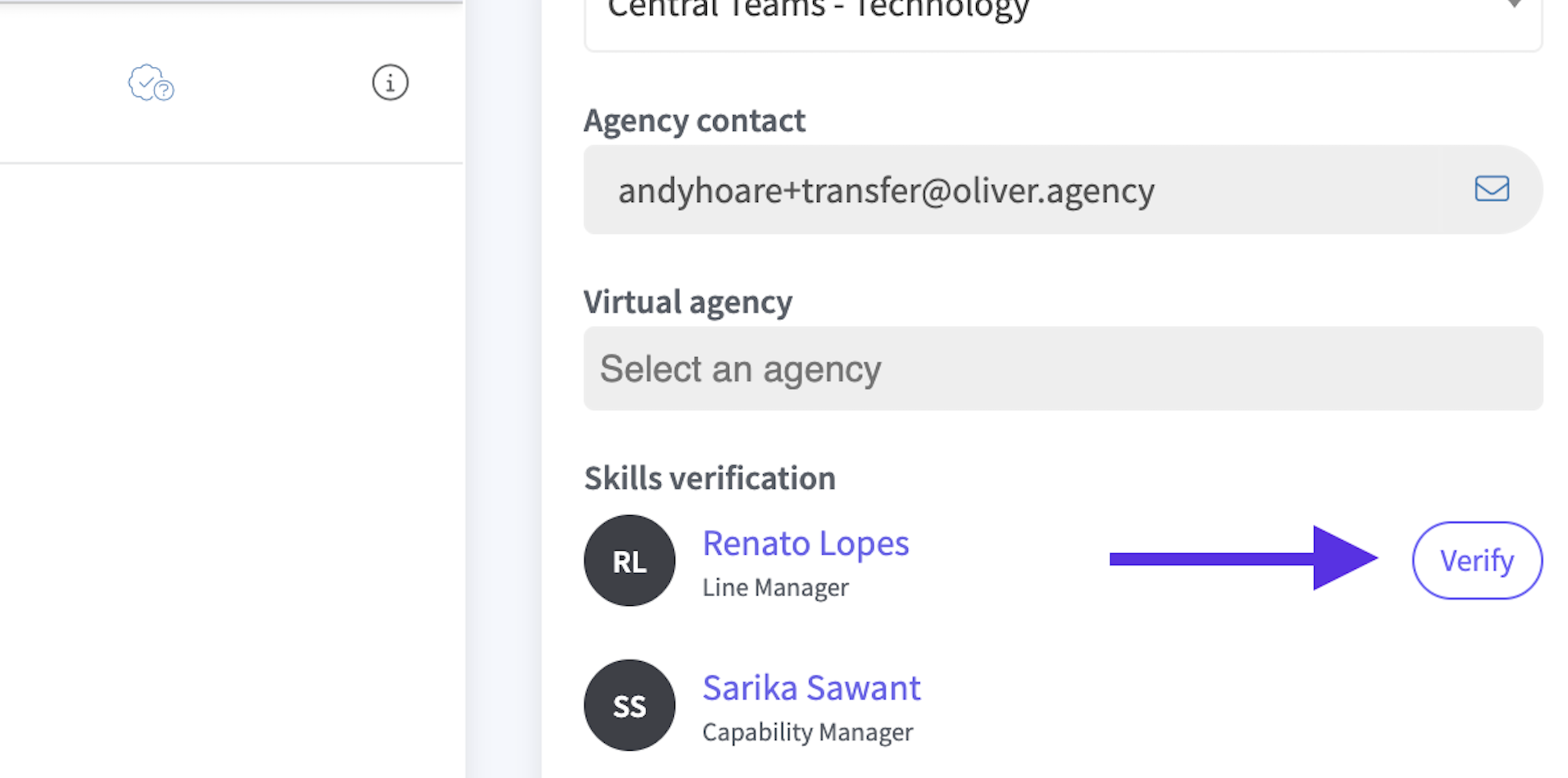
Find the Skills verification section. Scroll down within the Resource flyout until you see the Skills verification section. You will see your name listed as either the Line Manager or Capability Manager, with a "Verify" button next to it.
Verify the skills. Click the Verify button next to your name. This action confirms that you have reviewed and approved the team member's listed skills based on your experience working with them.
Troubleshooting Tips
- "Global talent" option is missing: If you do not see the "Global talent" option in the "My OMG" dropdown, you may not have the necessary permissions. Please contact your system administrator for assistance.
- Cannot find the team member: If you cannot find a specific team member on the Talent dashboard, they may not be assigned to your team in the system. Check with your HR or operations team to confirm their assignment.
- The "Verify" button is not visible or is disabled: This typically means you are not listed as the official Line Manager or Capability Manager for that individual. Please confirm your role with your administrator.
Success Confirmation
You will know you have successfully verified the skills when the button next to your name in the "Skills verification" section changes.
- The button text will change from "Verify" to "Verified".
- A checkmark icon will appear on the button.
Want to learn more?
