
Skills Matrix - How to Update Your Skills
Prerequisites
- You must have an active account for the Oliver (My OMG) platform.
- You must be logged into your account.
Step-by-Step Instructions
Part 1: Accessing the Skills Matrix
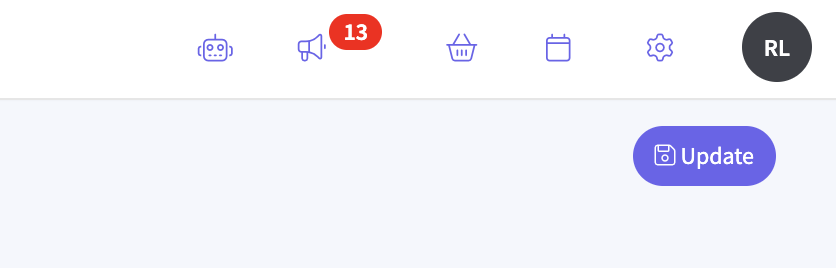
From the main dashboard, locate your profile icon in the top-right corner of the screen. It will typically show your initials (e.g., 'RL').
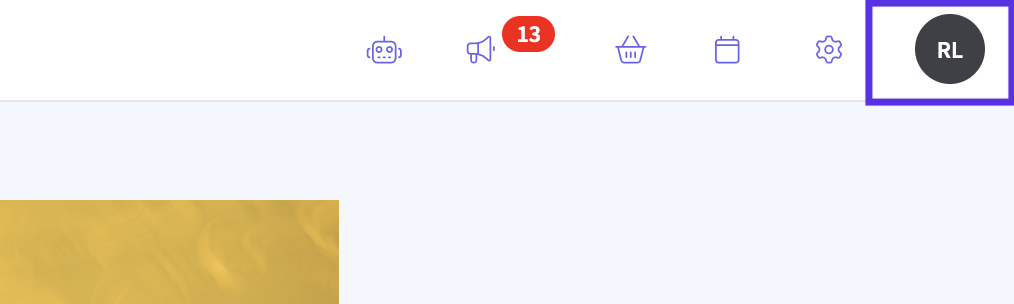
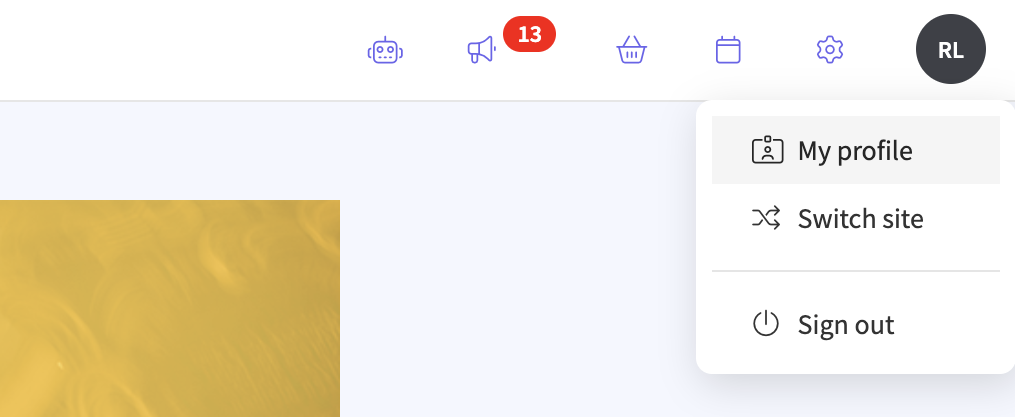
Click on your profile icon. A dropdown menu will appear.
From the menu, select My profile.
- You will be taken to your personal profile page.
On your profile page, look at the navigation menu on the left-hand side. Click on the Skills tab.
- The system will load for a moment, and you will be directed to the "Skills New View" page. This is the main Skills Matrix interface.

Part 2: Updating Your Skills
The Skills Matrix is organized into three main categories to help you easily find and rate your skills.
- Capabilities: These are your functional skills, such as Project Management, Account Management, or Sound Design.
- Applications: This tab lists specific software, tools, and platforms, like the Adobe Suite, Google Data Studio, or Zendesk.
- Experience: This category captures your background in different languages, regions, and industries.
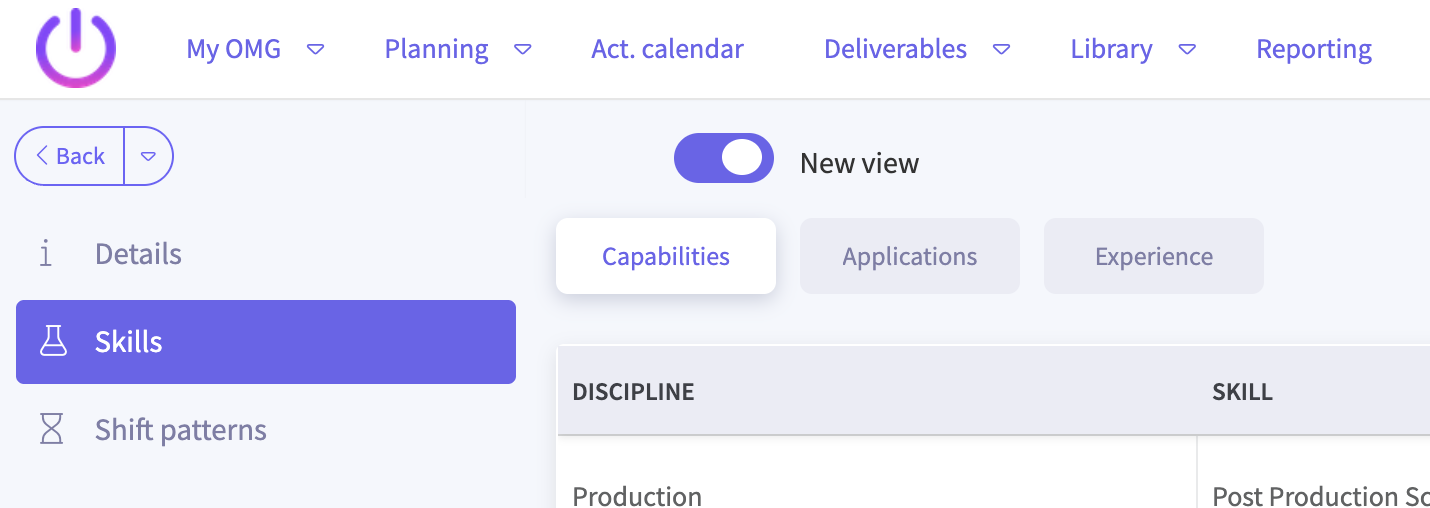
Click through the Capabilities, Applications, and Experience tabs to review the available skills.
For each skill you possess, rate your proficiency level by selecting one of the radio buttons:
- Novice: You have a basic understanding or are just starting out.
- Proficient: You are comfortable and experienced with the skill.
- Expert: You have advanced knowledge and can lead or train others.
- Note: You can only select one proficiency level per skill.
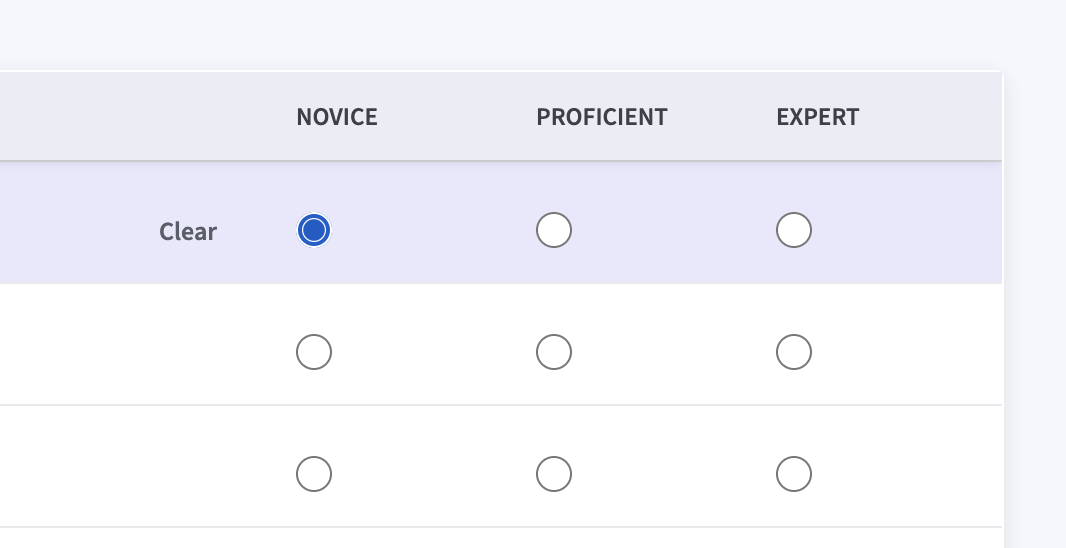
If you make a mistake or want to remove a skill rating, hover over the selected radio button. A Clear button will appear. Click it to reset your selection for that skill.
Part 3: Finding and Saving Your Skills
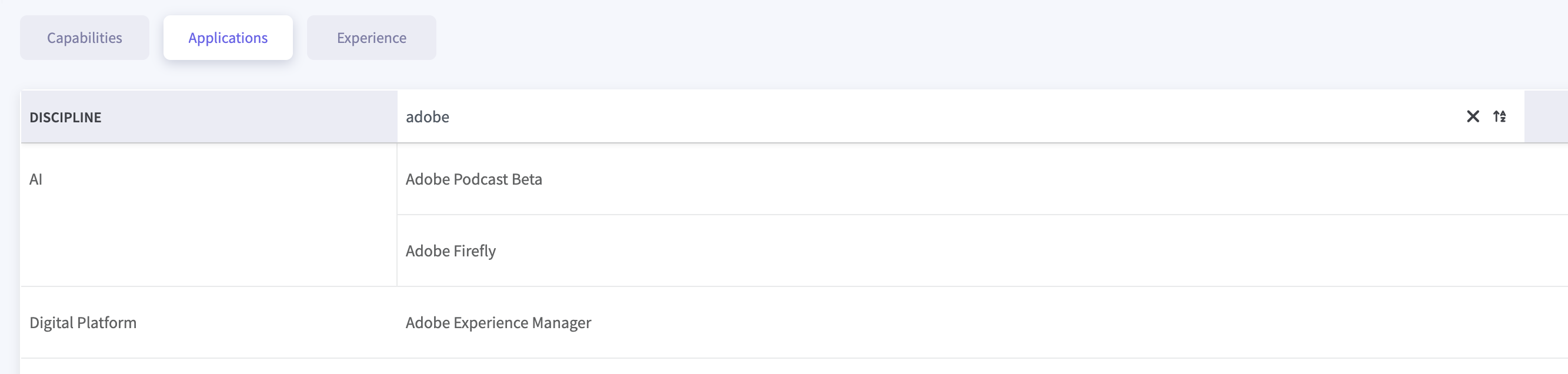
To quickly find a specific skill, use the search filter. Click the SKILL column header and type the name of the skill you're looking for (e.g., "Adobe"). The list will automatically filter to show matching results.
Once you have finished rating all your skills, click the blue Update button in the top-right corner of the page.
- The button will show a brief animation with a checkmark to confirm that your changes have been saved successfully.
- Important: Your changes will not be saved until you click this button.
Troubleshooting Tips
- I can't find the "Skills" tab: Make sure you have clicked on your profile icon and selected "My profile" first. The "Skills" tab is located in the left-hand menu of your profile settings, not on the main dashboard.
- My changes didn't save: Remember to click the Update button in the top-right corner after you've finished making your changes. If you navigate away from the page without clicking it, your updates will be lost.
- A skill I have isn't listed: If you can't find a specific skill, tool, or capability, contact your line manager or system administrator. They can advise on whether it can be added.
Success Confirmation
You have successfully updated your skills when:
- You see the checkmark animation after clicking the Update button.
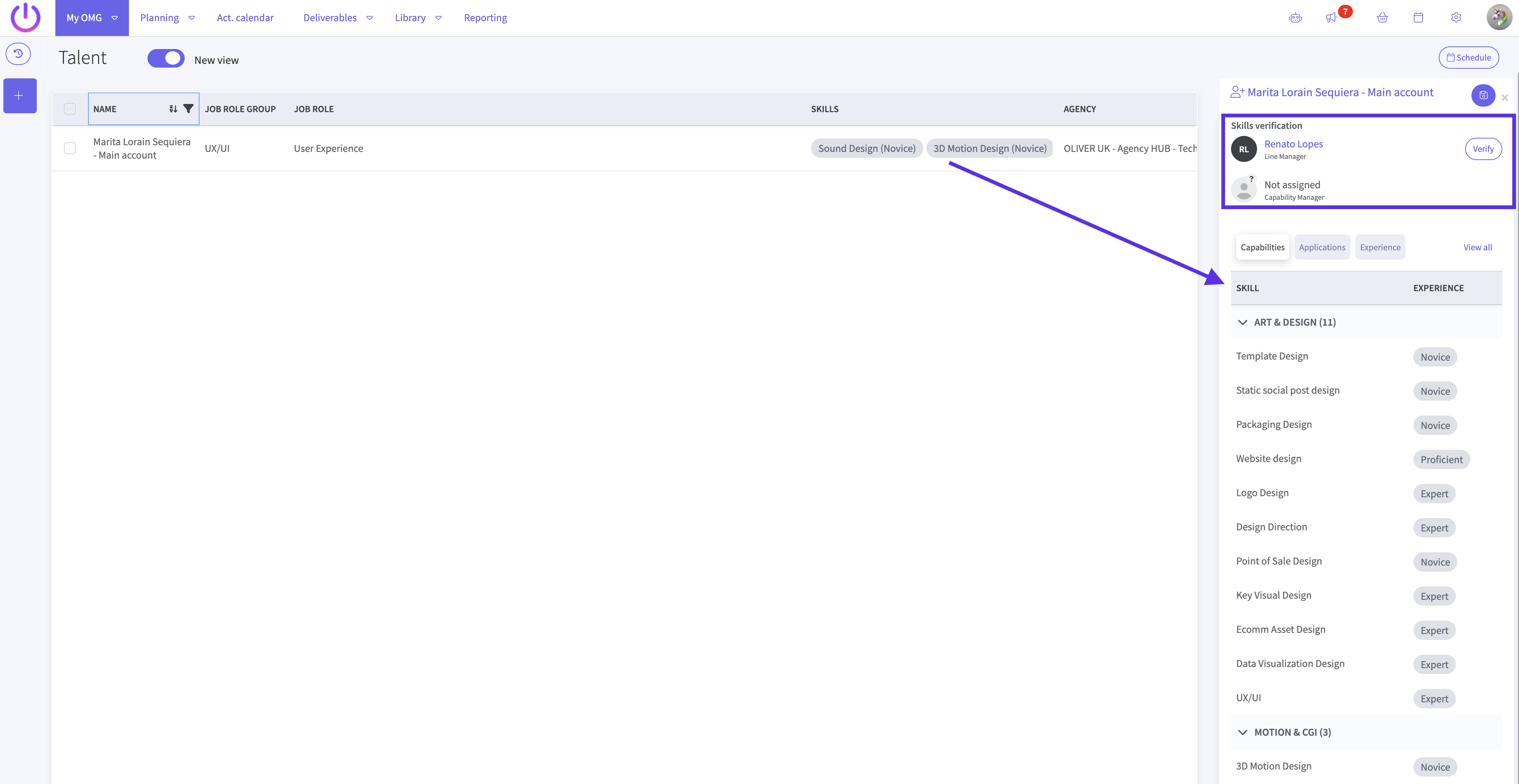
- You can verify your updates by navigating to the Global talent dashboard.
- From the top navigation bar, click My OMG, then select Global talent.
- On the Talent dashboard, filter the NAME column to find yourself.
- Click the info icon (i) at the far right of your row to open a detailed view (the "resource fly-out").
- In this view, you can see all your listed skills and their proficiency levels. You can also see the Skills verification status, which shows when your manager last verified your skills.
Want to learn more?
