OMG Release notes - v7.177.0
This release introduces several key improvements and new features designed to streamline workflows, improve data accessibility, and enhance usability across OMG. From a customizable Change Request form to advanced filtering, Approval grid downloads, and refinements to Slipstream, these updates bring greater efficiency and control to your daily tasks. 🚀
Slipstream
🤖 UI & Functionality Updates to Chat to Brief and Find Similar
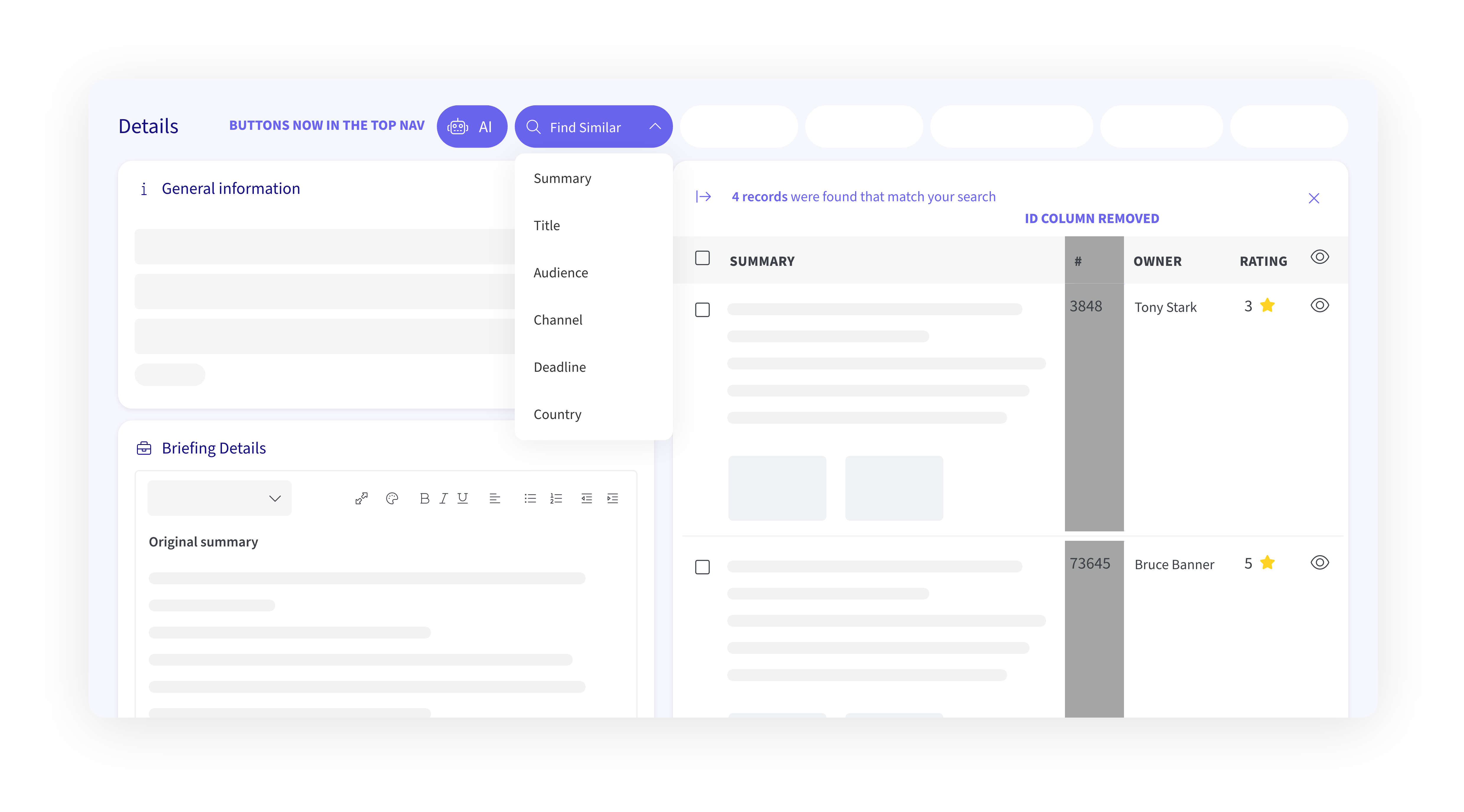
- The Chat to Brief (Brief Assistant) and Find Similar buttons have been moved to the top navigation in Brief Details & Brief Summary screens for easier access.
- With the Find Similar button now in the top navigation, you can use this feature on all Brief-related screens, not just during AI brief creation.
- The Brief ID column has been removed from the Find Similar results panel, streamlining the interface for a cleaner and more intuitive experience.
My Briefs
📝 Enhanced Change Request Functionality with a Customizable Form
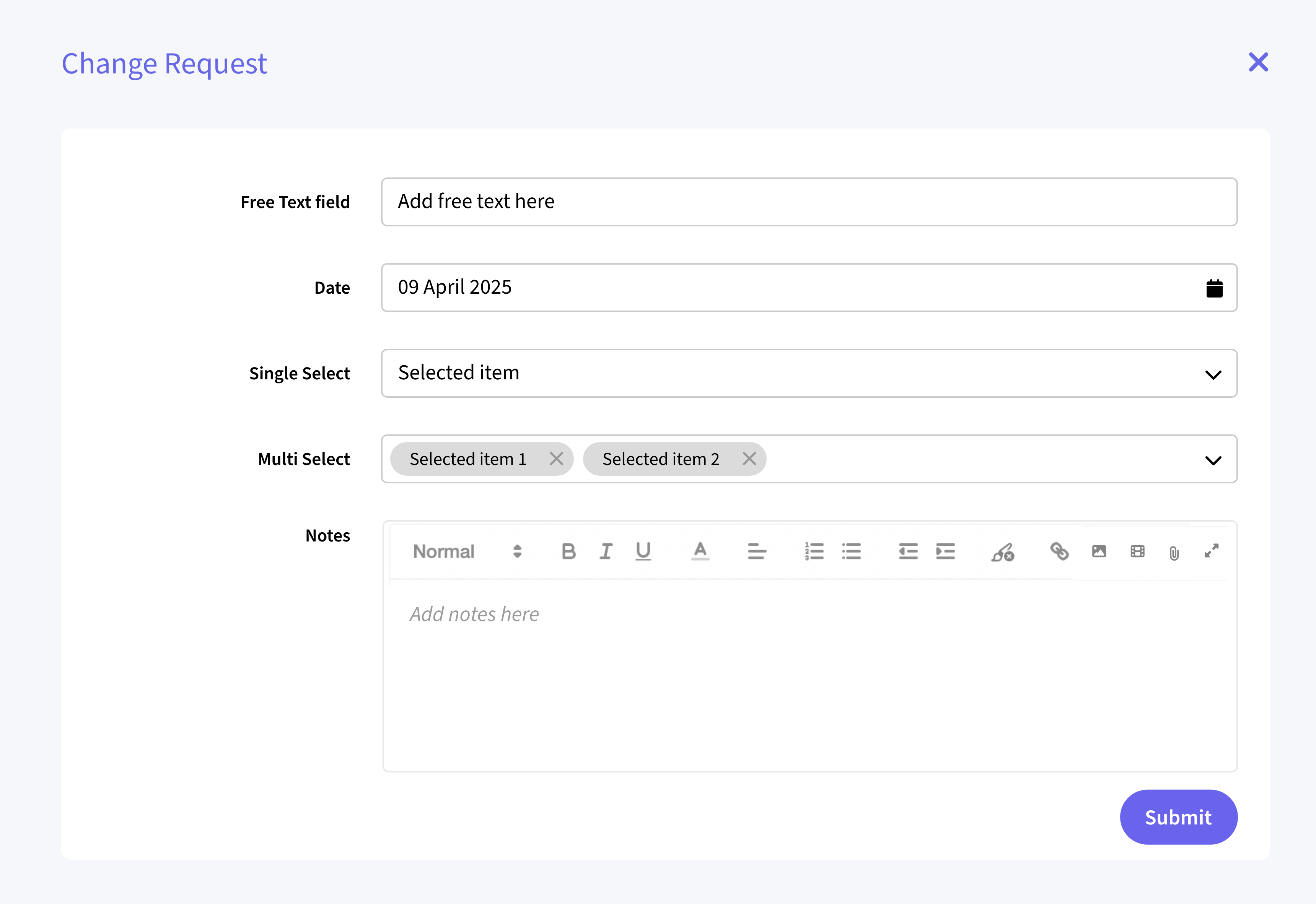
- Admins can now customize the Change Request submission form by adding date fields, single/multi-select dropdowns, and free text fields based on asset type.
- These custom fields will appear in both the Change Request modal and the Event Log, providing greater flexibility.
- The "Notes" field remains mandatory for all submissions.
My Approvals
📥 Export Approvals Data with Ease
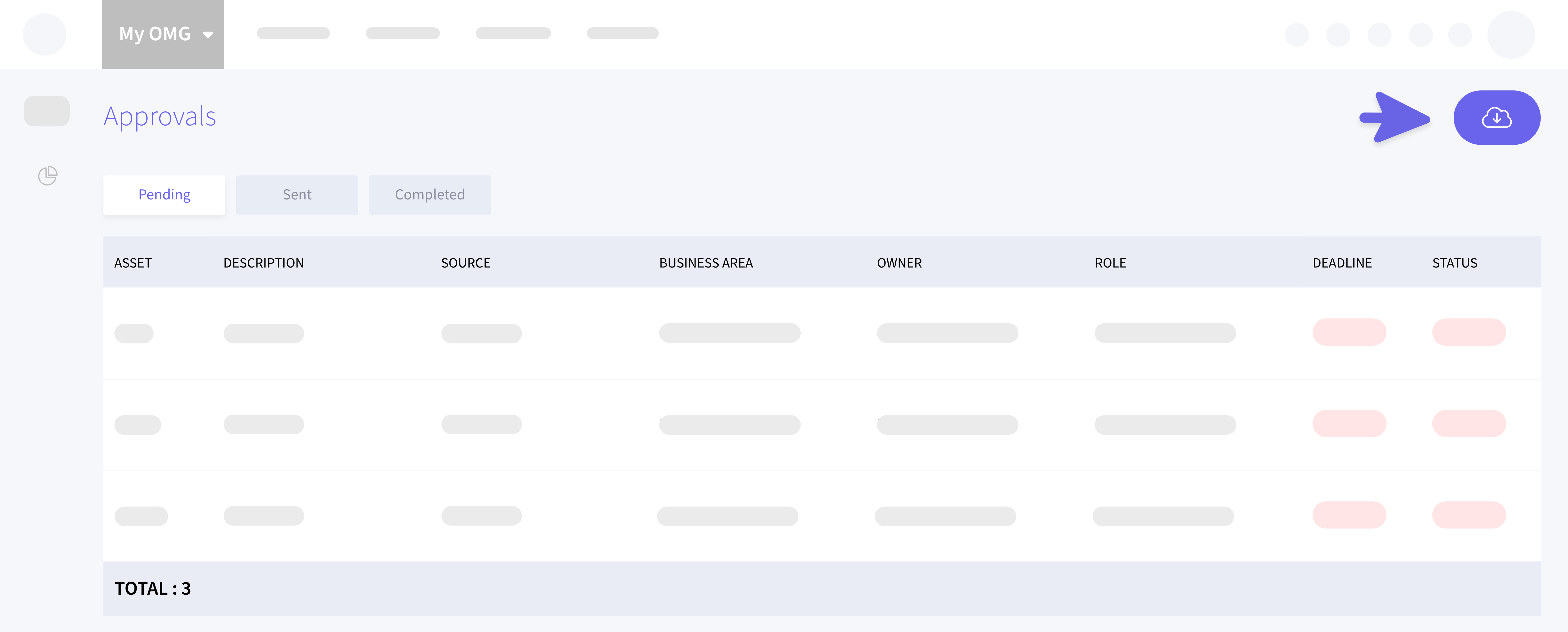
- You can now download grid data in My Approvals, just like in Planning and Site Admin > Users List.
- Your downloaded file will reflect your current view - sorted, filtered, and grouped data, ensuring only visible rows are included. Collapsed rows will not be exported.
- The export will also include a new Link column which will contain the OMG link to the asset.
Advanced Header Filters - OMG Wide!
🔍 Consistent Filtering Across Modules
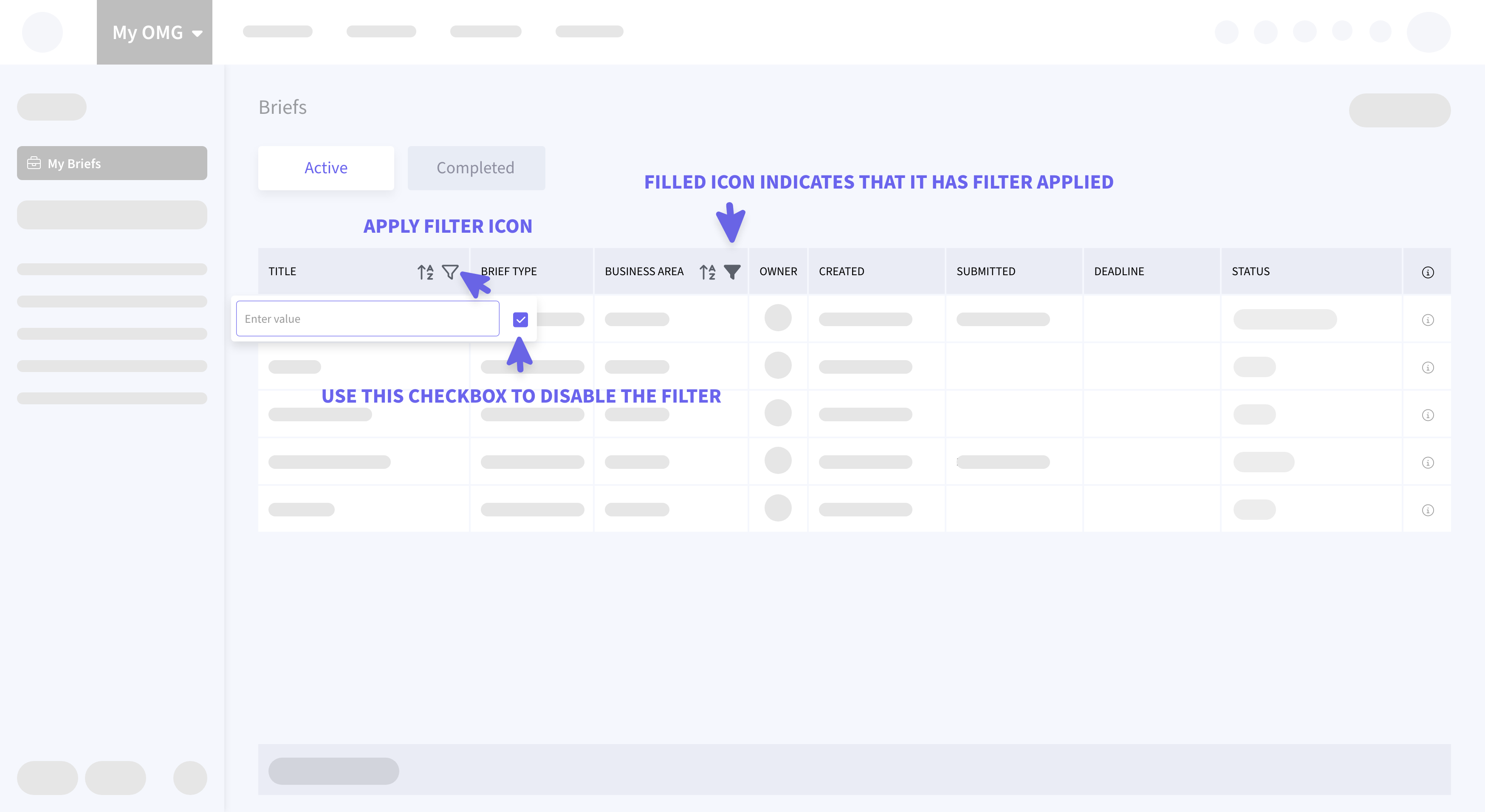
- Advanced header filters, previously exclusive to the new Deliverables view, are now available in Estimates, Approvals, My Orders, Releases, Admin areas, and Briefs.
- Instead of typing directly into column headers, click the Apply Filter icon to open a dropdown where you can input your filter.
- Columns with active filters are clearly indicated with a filled Apply Filter icon for better visibility.
- These filters can be temporarily disabled using the checkbox - no need to clear and reapply them.
- Filtering supports text, date, and prepopulated dropdown selections for more flexibility.