
Global Talent - How to Use the Skills Matrix to Find and Allocate Resources
Prerequisites
Before you begin, please ensure you have the following:
- An active account for the OLIVER OMG platform.
- Permissions set to "Resource Manager" or a similar role that grants access to the "Global Talent" and "My Resources" sections.
- You are logged into your OMG account.
Step-by-Step Instructions
This process is broken down into two main parts: finding the right person for the job and then checking their availability.
Part 1: Finding Talent with the Skills Matrix
In this section, you'll learn how to navigate to the "Talent" dashboard to find a team member with the skills you need.
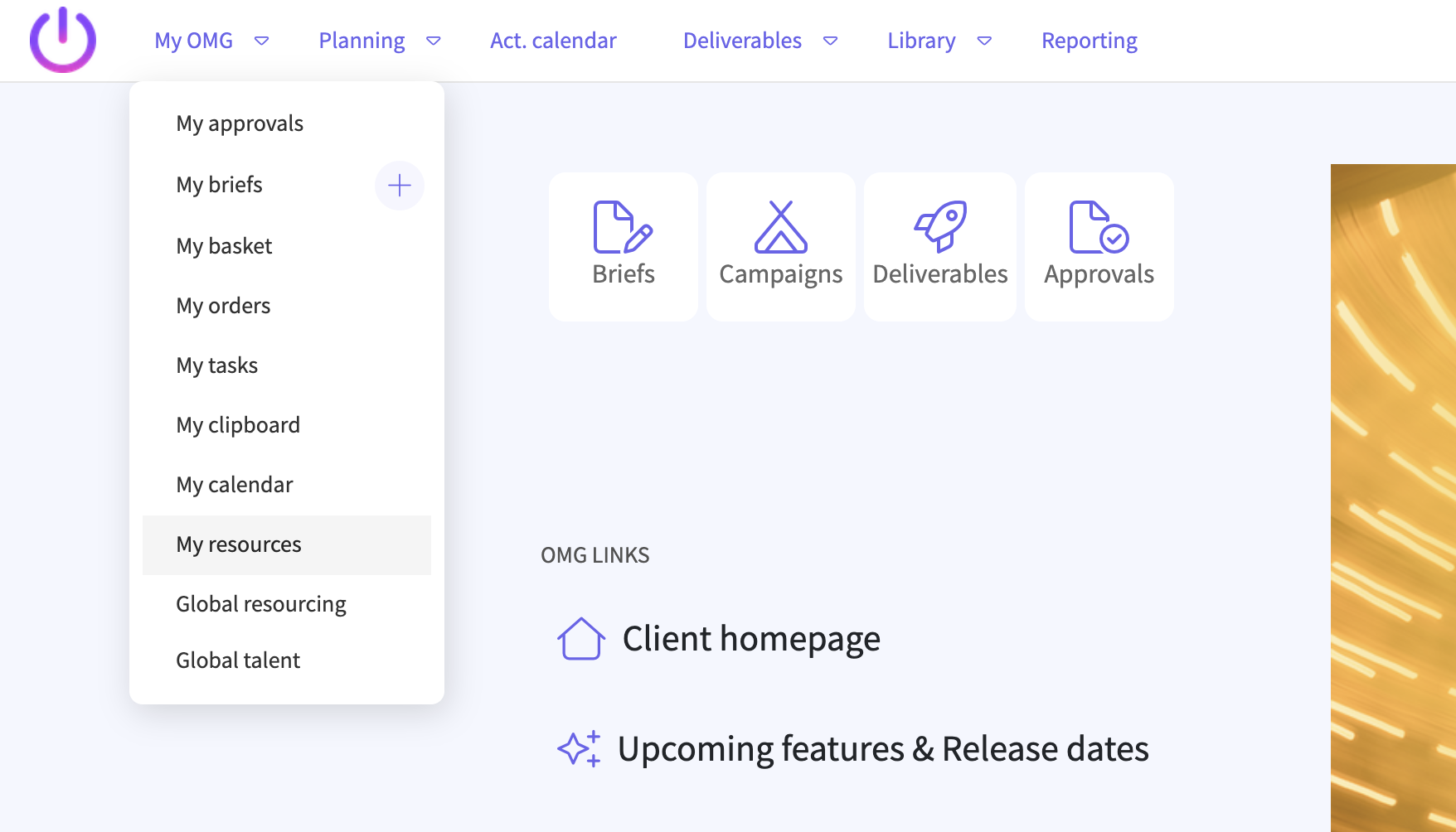
From the main dashboard, locate the top navigation bar. Click on the My OMG menu item.
- A dropdown menu will appear with several options.
- From the dropdown menu, click on Global talent.
- The system will take you to the "Talent" dashboard, which displays a list of all available resources.
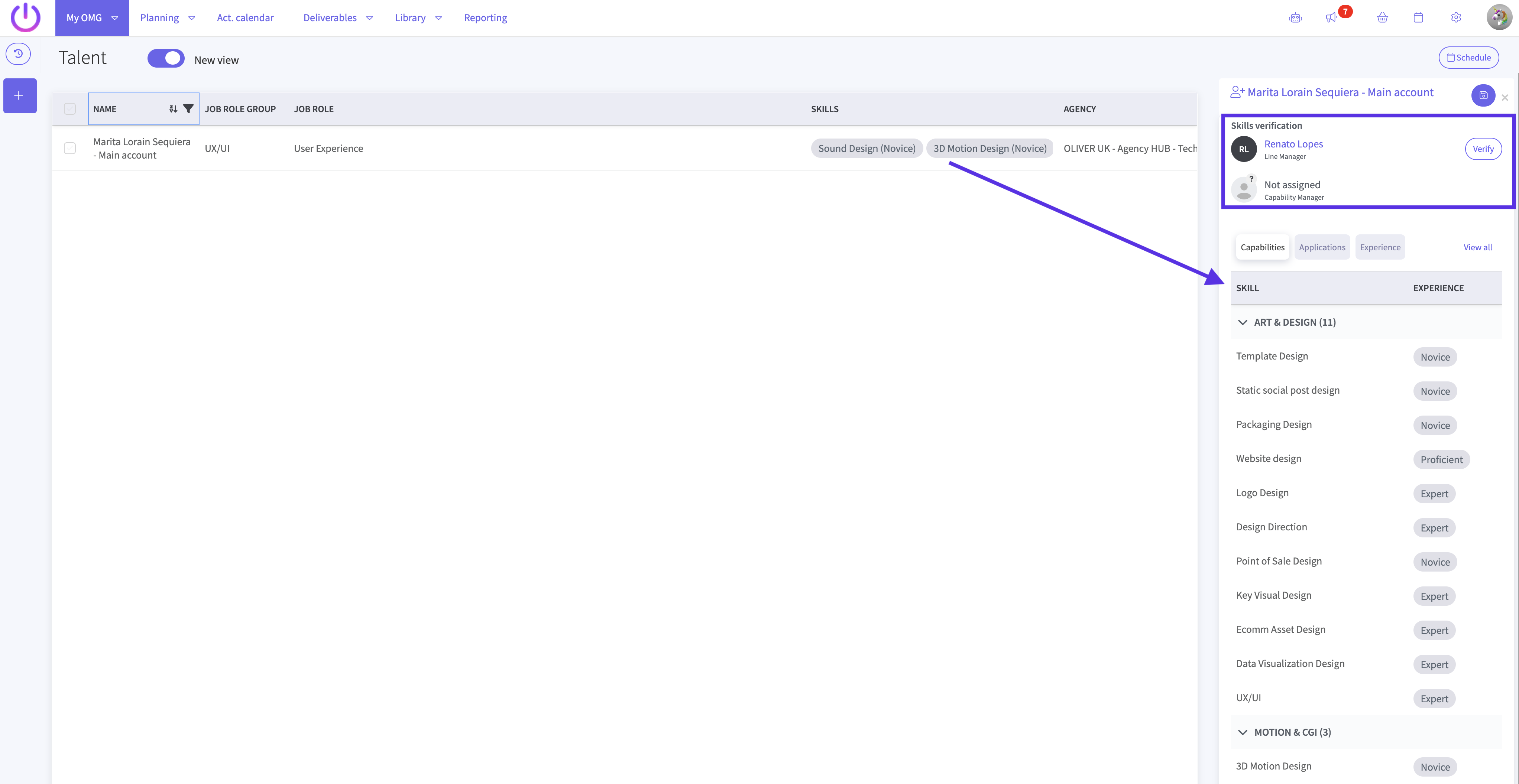
On the "Talent" dashboard, you'll see a table with information about each person.
- This table includes columns like NAME, JOB ROLE GROUP, SKILLS, and AGENCY. This view gives you a quick overview of everyone's core capabilities.
To view a specific person's detailed profile and skill verification status, click the info icon (a circle with an "i" in it) located at the far right of their row.
- A side panel will open from the right side of the screen, displaying the resource's detailed information, including their full skill set and verification status.
Part 2: Viewing Resource Availability and Allocating Work
Once you've identified the right person, the next step is to find them in the scheduling tool to see their availability.
Navigate back to the top navigation bar and click on the My OMG menu again.
From the dropdown menu, this time select My resources.
A pop-up window titled Resource agency will appear. Click inside the text field to see a list of available agencies.
- Scroll through the list or start typing to find the agency that your chosen resource belongs to.
Click on the correct agency to select it, and then click the purple Go button.
You will now be on the Resources page, which displays a master schedule for the selected agency.
Near the top of the page, find the New view toggle switch and click it to enable the updated interface.
- This provides a cleaner, more organized view of the resource schedules.

In the list of resources on the left, scroll to find the team member you identified in Part 1.
- You can now see their schedule on the timeline to the right, allowing you to check their availability and allocate a new task or project.
Troubleshooting Tips
- "I can't see the 'Global talent' or 'My resources' options in the menu."
- This usually means your account does not have the necessary permissions. Please contact your system administrator to request access.
- "The person I'm looking for isn't on the 'Talent' dashboard."
- Ensure you are viewing the correct agency or team. The resource may be listed under a different agency than you expect. Use the filter options on the dashboard if they are available.
- "The 'New view' toggle isn't working."
- Try refreshing the page. If the issue persists, contact your support team, as this may be a temporary system bug.
Success Confirmation
You have successfully completed this process when you are on the Resources page (in "New view") and can see the weekly or monthly schedule for the specific team member you selected from the Talent dashboard. You are now ready to click on the timeline to assign them work.
Want to learn more?
